 Cookie Editor
How to Install Cookie Editor in Firefox
Install Cookie-Editor in Firefox from Mozilla Add-ons, pin the icon, and check it against a simple preference cookie.
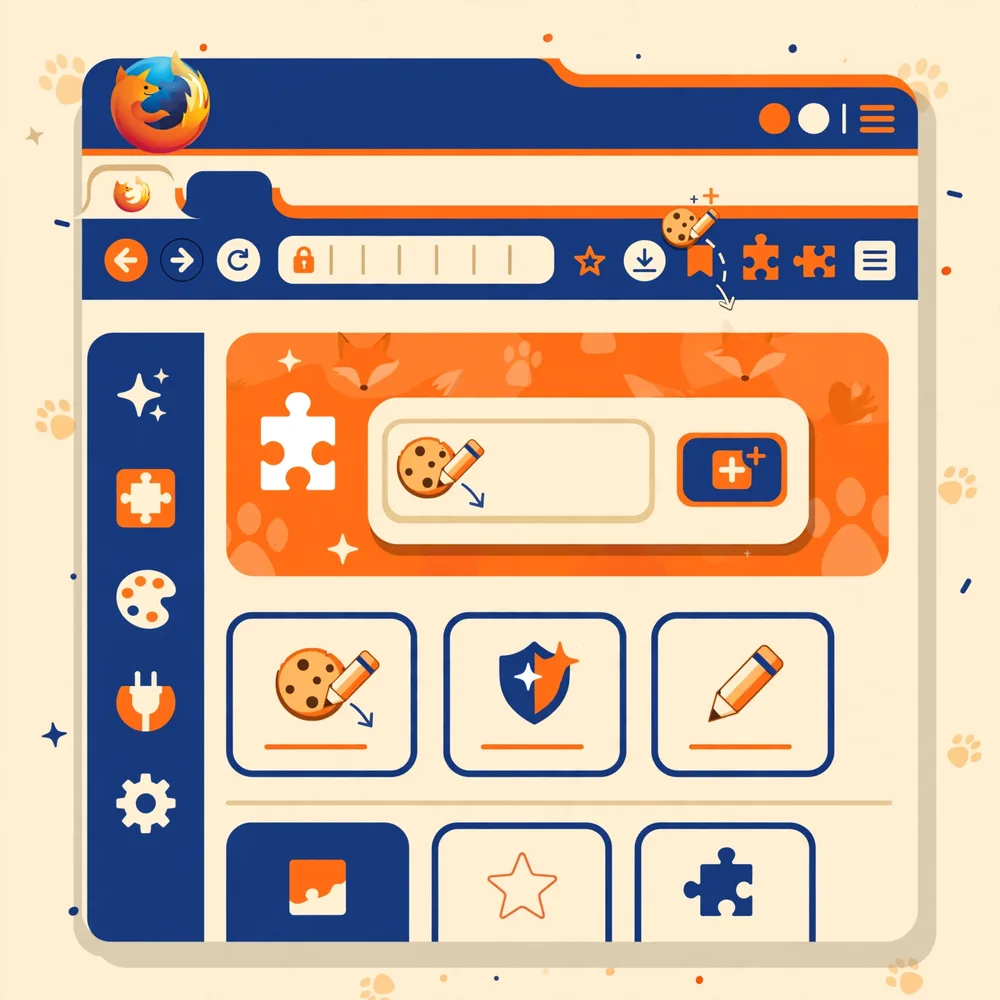
Firefox users install Cookie-Editor from Mozilla Add-ons (AMO), where it is published under the name Cookie-Editor. The Firefox build is the same open-source project as the Chrome version, and it also powers the Firefox for Android build. According to Mozilla's version history, the current release is version 1.13.0, which works with Firefox 112.0 and later, so any up-to-date Firefox is fine.
Install Cookie-Editor in Firefox
- Open the Mozilla Add-ons listing
Use the Firefox link in the homepage download section, or search addons.mozilla.org for “Cookie-Editor” and check the author matches the official project.
- Click Add to Firefox
Firefox downloads the add-on and shows a permission prompt before anything is installed.
- Review the permissions
The prompt explains that Cookie-Editor needs access to cookies and site data to display and edit them. If the prompt appears for a page you did not intend, cancel it.
- Confirm with Add
Click Add. Firefox installs the add-on and may offer a checkbox to allow it in private windows, leave that off for now unless you specifically test in private windows.
- Pin the icon
Click the puzzle-piece Extensions button in the toolbar, right-click Cookie-Editor (or use its gear menu) and choose Pin to Toolbar so the icon stays visible.
Verify the installation
Open a page that saves a preference, a theme or language setting on a site you control is ideal, then click the Cookie Editor icon. The panel lists the cookies for the current tab. Expand one entry to see its value, domain, path and expiry. If the list is empty, reload the page first: some sites only write the preference cookie after you change a setting or reload.
Allowing Cookie-Editor in private windows
By default, new add-ons do not run in private windows. If you test in private browsing and the icon is missing, open about:addons, select Cookie-Editor, and set “Run in Private Windows” to Allow. Remember that private windows use a separate, temporary cookie store, so values there will not match your normal windows.
Make it yours: Cookie-Editor options
Cookie-Editor has an options page (open it from the add-on's page in about:addons, or from the panel's settings control, depending on version). Mozilla's version history for the current release mentions options to turn off the small ads shown in the interface, to enable or disable animations, and to move the button bar to the top of the panel. None of these change how cookies are handled; they are purely about how the panel feels during long testing sessions. If your panel layout ever looks different from a screenshot in a guide, one of these options is usually why.
A note on containers
Firefox's container tabs (and the Multi-Account Containers add-on) give each container its own cookie store, which is a feature, not a fault: the same site can be signed in as two different accounts in two containers. Cookie-Editor shows the cookies for the container of the tab you opened it in. If values look “wrong”, check the tab's container colour before editing, you may be looking at a perfectly healthy cookie that belongs to another container.
What you should see when it works
After a good install, the cookie icon is either pinned beside the address bar or waiting inside the puzzle-piece Extensions button, depending on what you chose. Opening it on a site that saves preferences shows that site's cookies, and the panel remembers nothing between sites: switch tabs, reopen, and you are looking at the new tab's store. Firefox also shows Cookie-Editor in about:addons with its toggle on and its version listed, which is where you confirm the install if the icon ever goes missing.
Private windows and permission for them
By default, newly installed add-ons do not run in private windows, and Cookie-Editor is no exception. If you test in private windows, open the add-on's page in about:addons and allow it to run in private windows; otherwise the icon will simply not be there in a private tab, which looks like a broken install but is really a permission boundary. Remember that a private window's cookies are temporary and separate, so a preference set in a normal window will never appear in a private one, whatever you allow.
If Firefox updates and the panel changes
Firefox and Cookie-Editor both update quietly in the background, and an update can move a control or rename a menu. When a guide's wording and your screen disagree slightly, trust the screen and look for the same idea nearby: the extensions list, the add-on's own page, and the panel itself change far less often than the menus around them. The version number in about:addons tells you exactly which build you are reading about in the project's version history.
After installing, two options worth knowing
Firefox's add-on page for Cookie-Editor holds two settings new users miss. The keyboard shortcut field lets you bind the panel to a key combination, which suits anyone who opens it dozens of times a day. And the add-on's own options, reached from its page, include the panel preferences mentioned in this guide's options section, such as where the button bar sits. Set them once, while the install is fresh; six months from now you will not remember they exist, but your hands will be using them daily.
Frequently Asked Questions
Does Cookie-Editor work on Firefox for Android?
Yes, the same listing supports Firefox for Android (Android build 120.0 and later per Mozilla's version history). The separate Android guide in this category walks through the mobile steps.
Why does Firefox show a permission warning?
Cookie editing is a powerful capability, so Firefox describes it plainly at install time. The warning is expected for this add-on; what matters is that you installed the genuine listing from Mozilla Add-ons.
Can I sync Cookie-Editor to another computer?
Firefox Sync can carry add-ons between your Firefox profiles when you sign in, but cookies themselves are per device and per profile, install and test separately on each machine.
Related guides
How to Install Cookie Editor in Chrome, Step by Step
Install the original Cookie-Editor in Chrome from the official Web Store listing, pin the icon, and verify it works with a harmless theme preference.

Cookie Editor on Android: Firefox Setup Guide
On Android, Cookie Editor runs inside Firefox. Here is how to install it, find it in the menu, and test it on a real page.
Cookie Editor Not Working? Icon Missing, Empty List and Other Fixes
Icon missing, empty list, wrong profile, mobile not opening, the five Cookie Editor problems people actually hit, with the fix for each.