 Cookie Editor
 Permissions: Site Access Problems and Fixes
What Cookie Editor's permissions actually allow, where each browser hides the site-access switch, and how to unblock a restricted site.
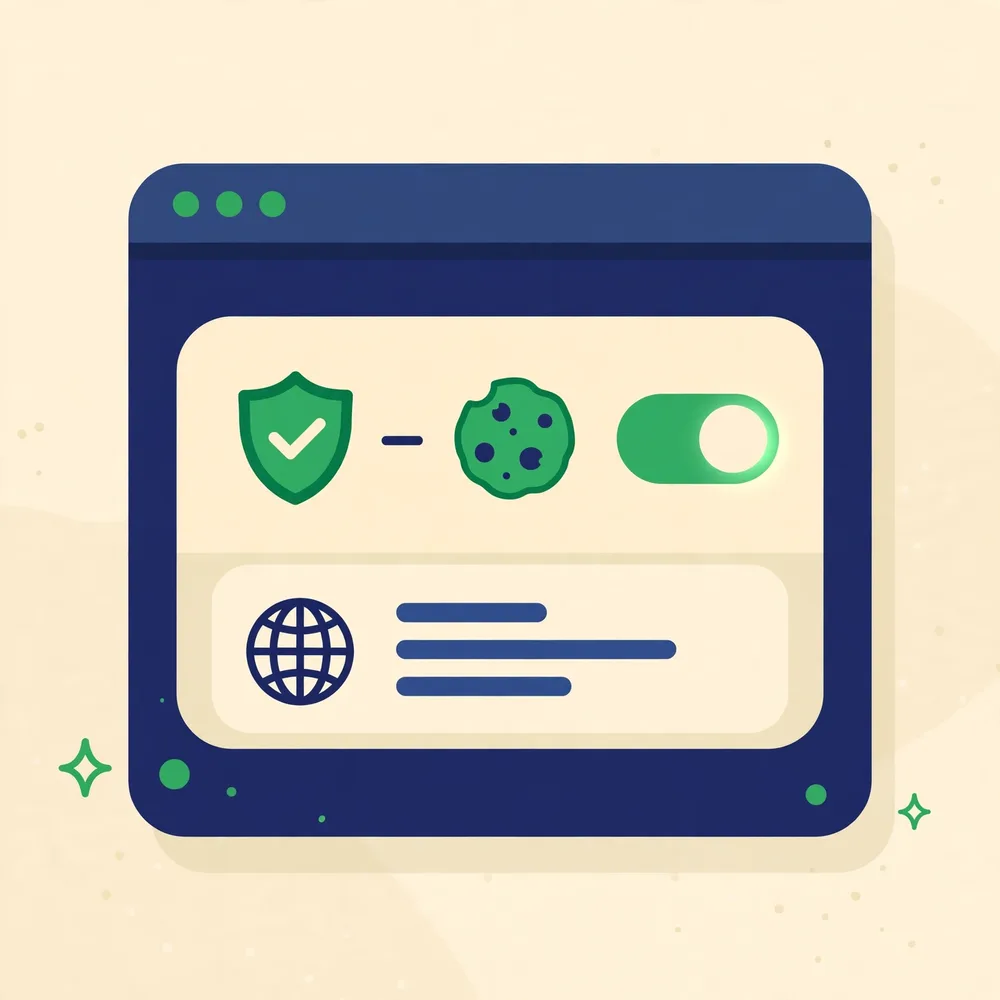
Cookie Editor can only work with permissions your browser grants it: access to cookies, and access to the sites you open it on. When a panel is empty or an edit is refused, a permission setting is very often the reason. This guide explains what the permissions mean in plain terms and where each browser keeps the controls, so you can fix a block without handing the extension more access than it needs.
What Cookie Editor asks for, and why
| Permission | Why it is needed | What it does not do |
|---|---|---|
| Cookies access | Reading, creating, editing and deleting cookies is the extension's entire job | It does not send your cookies anywhere; operations happen locally in your browser |
| Site / tab access | The panel must know which site the active tab is on to show that site's cookies | It does not grant access to pages you never open it on, beyond what the browser's site-access setting allows |
| Storage (options) | Saving your extension preferences such as interface options | It is not where your cookies are kept, cookies stay in the browser's own store |
Fix site access in Chrome and Edge
- Open the extension's details: puzzle-piece menu → Manage extensions → Cookie-Editor → Details (Edge: Settings → Extensions → Manage).
- Find “Site access”. If it is set to “On click”, the panel only works after you click the icon for that site, which is fine and the most private setting.
- If a specific site is listed as blocked, remove it from the blocked list or switch access to “On all sites” while you test, then tighten it again afterwards.
- Reload the tab and reopen the panel; permission changes apply to newly loaded pages.
Fix permissions in Firefox
Firefox shows an extension's permissions under about:addons → Cookie-Editor → Permissions. If the panel behaves as though it cannot see the page, check that no container tab or private-window restriction is in play: add-ons need explicit allowance for private windows, and container tabs keep separate cookie stores by design. Re-granting is rarely needed on Firefox; profile and container mix-ups are the usual story, see the not-working checklist.
Fix permissions in Safari
Safari manages access per website. Open Safari Settings → Extensions → Cookie-Editor to see which sites are allowed, and use the address-bar extension button on a page to grant that site if Safari prompts. On iPhone and iPad the same list lives in Settings → Safari → Extensions → Cookie-Editor. If a site is set to “Ask” or denied, the panel can open with nothing to show.
Permission prompts, decoded
When a browser asks 'Cookie-Editor can read and change cookies on this site', it is describing the job, not warning of a defect. Reading is what fills the panel; changing is what saving an edit does. A cookie tool without those two abilities is a picture of a tool. What deserves attention is scope creep beyond the job: a simple editor has no reason to ask for your browsing history, your downloads, or data on unrelated kinds of pages, and a prompt that bundles extras is a prompt to cancel and re-check which listing you are installing from.
Site access settings, browser by browser
Each browser hides the same control in a different place, and knowing yours is a five-minute investment that pays off every time a panel comes up empty. In Chrome and Edge it lives in the extension's details: site access can be on all sites, on specific sites, or only when you click the icon. In Firefox, the add-on's page and the permissions prompts manage it, with private-window access as a separate switch. In Safari it is per-website, granted from the extension's toolbar item or Settings. The click-to-run option is the one this site recommends for everyday use: the extension stays dormant until you invite it onto a page.
A sensible default posture
For most people the comfortable setup is: install only from the official listing, leave updates automatic, set site access to run when clicked if your browser offers it, and allow private-window access only if you actually test there. That posture gives you the full tool when you reach for it and nothing at all when you do not. Permissions are not a one-time decision either; revisit them after major browser updates, because browsers occasionally reset or re-prompt, and an empty panel months later is often just a permission that quietly lapsed.
If you manage computers for other people
On a family or work machine you administer, the permission conversation changes: the question is not only what the extension may do, but who else uses the browser. An editor that can read sessions is a reasonable tool on your own profile and a questionable one on a shared profile where other people sign in. The clean pattern is the same one this site recommends for testing: a dedicated profile for the person doing cookie work, with the extension installed there only, and everyday profiles left without it. Permissions follow people and profiles, not just software.
Frequently Asked Questions
Is it safe to give Cookie Editor access to all sites?
That setting is what lets the panel work on any tab without per-site clicks. The extension is open source and operates locally, but the cautious pattern is “on click” or per-site access, widening only while you test. The safety guide in the Privacy category explains the trade-off.
Why did the panel stop working after a browser update?
Major browser updates occasionally reset extension site access or require re-confirmation. Re-check the site-access setting before assuming the extension broke.
Can my employer or school restrict the extension?
Yes, managed browsers can block extensions or specific permissions by policy. If the controls are greyed out on a work device, that is the likely reason; test on a personal profile instead.
Related guides

Is Cookie Editor Safe? Permissions, Data and Safe Habits
Cookie access is powerful, so the question deserves a straight answer: what the genuine extension does, what it never needs, and the habits that keep you safe.
Cookie Editor Not Working? Icon Missing, Empty List and Other Fixes
Icon missing, empty list, wrong profile, mobile not opening, the five Cookie Editor problems people actually hit, with the fix for each.

Cookie Editor on iPhone, iPad and Safari (macOS)
Safari gets Cookie-Editor through an App Store app that you then switch on in Safari's settings. Full steps for Mac, iPhone and iPad.